GUIness
Build AI pipelines from reusable primitives, composable skills, and internal graphs — all inside a portable, local-first visual runtime.
Getting Started
GUIness is a self-contained, single-file HTML application for designing, testing, and executing AI skill pipelines. It runs entirely in the browser — no server, no install, no dependencies.
Quick Start
- Open the file — Double-click
GUIness_v##.htmlor serve it fromlocalhostfor full File System Access API support. - Explore the primitives — The Node Library on the left contains 8 primitive node types. Click the
+button next to any primitive to add it to the canvas. - Connect nodes — Drag from an output port (solid circle) to an input port (open circle) to create connections.
- Configure nodes — Select a node to see its fields in the Inspector panel on the right. Fill in instructions, code, variables, or conditions.
- Run your pipeline — Click Export → LLM in the top right to open the Run drawer. Add your API key to the Vault, select a provider, and hit ▶ Send to LLM.
Requirements
- A modern browser (Chrome, Edge, Firefox, Safari)
- An API key for at least one LLM provider (Anthropic, OpenAI, Gemini, or a local Ollama / Friday / OpenAI-compatible instance)
Local LLM Setup
For free, private execution, install Ollama and run a model:
ollama run llama3
Then enable CORS for browser access:
OLLAMA_ORIGINS=* ollama serve
In the Run drawer, select ⊙ Local, leave the URL as http://localhost:11434, and hit Detect to find your models.
Friday AI Agent
If you run Friday as a local LLM proxy, point the Run drawer's URL field to http://localhost:3777. Friday exposes its configured models via the OpenAI-compatible /v1/models endpoint, so Detect works out of the box. If Friday requires auth, add your token to the Vault as 🤖 Friday Token.
Other OpenAI-Compatible Servers
The Local provider also works with any OpenAI-compatible server — LM Studio, llama.cpp, Jan, etc. Set the server URL in the Run drawer and hit Detect.
UI Overview
Hover over any region of the screenshot to see what it does.
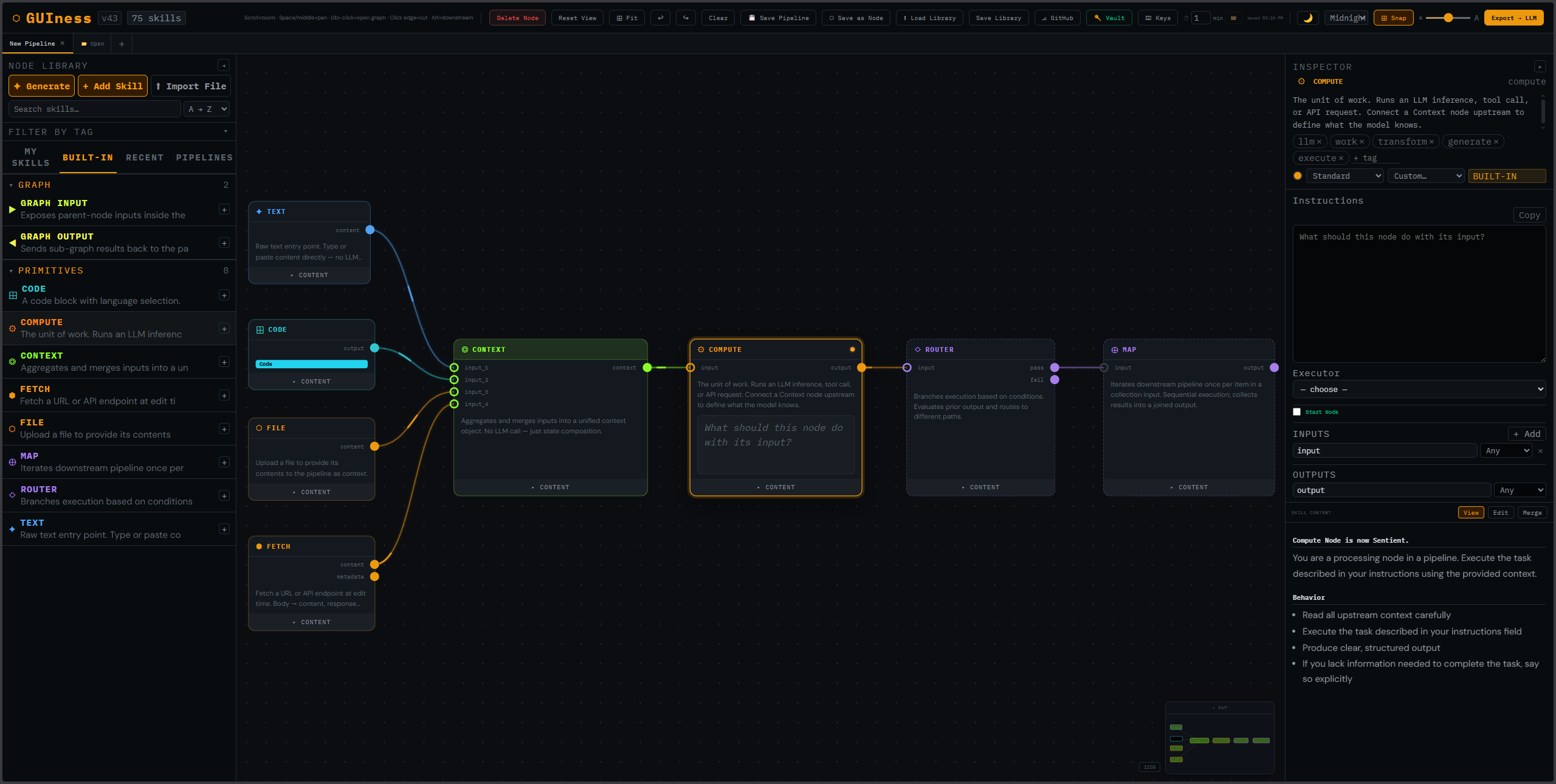
+ button creates a new pipeline.
+ next to any skill to add it to the canvas, or drag a skill onto the canvas. Top actions: Generate creates a skill with AI, Add Skill opens the manual wizard, Import File loads .md/.json/.txt/.skill/.zip files.
Primitives
GUIness has 8 primitive node types. Everything else — custom skills, templates, agents — is composed from these primitives.
#-prefix comment lines for self-documenting templates. Body content becomes the node's output; response status and headers are exposed as a separate metadata port. Supports custom headers.System Nodes
Two additional nodes are used for sub-graph wiring:
- ▶ GRAPH INPUT — Exposes parent node inputs inside a sub-graph
- ◀ GRAPH OUTPUT — Sends sub-graph results back to the parent node
Connections & Flow
Port Types
- Input ports (left side) — Open circles with a colored stroke. Accept data from upstream nodes. When connected, the stroke fills with the node's color.
- Output ports (right side) — Solid filled circles. Send data downstream.
Making Connections
- Hover over an output port until the cursor changes to a crosshair
- Click and drag toward an input port on another node
- Release on the target port to complete the connection
Magnetic snap — if you release the connection drag within 24px of an eligible input port, it automatically snaps and connects. You don't need to land exactly on the port.
Connections flow left-to-right by convention. The system prevents cycles — you can't create a loop that would cause infinite execution (except through Router nodes with explicit loop control).
Data Flow
In Single mode, all connected nodes are compiled into one monolithic prompt sent to the LLM. In Chain mode, nodes execute sequentially in topological order, with each node's output piped as input to the next. Context nodes merge multiple inputs without an LLM call. Router nodes evaluate conditions and branch execution.
Building Pipelines
Creating a Pipeline
Click the + button in the tab bar to create a new empty pipeline. Each pipeline has its own canvas, nodes, edges, and undo/redo history.
Adding Nodes
Several ways to add nodes to the canvas:
- Library — Click the
+button next to any skill, or drag a skill from the Node Library onto the canvas - Quick Add — Double-click on empty canvas (or press
Q) to open a search popup and place a node at that position - Import — Use ⬆ Import File or drag-and-drop
.ppln,.sklb,.md,.txt,.zip, or.jsonfiles onto the canvas - Keyboard — Press
/to focus the library search, then click+to place
Organizing
- Drag nodes to position them — alignment guides appear automatically when edges align with neighboring nodes
- Resize width by dragging the left or right edge of a node
- Multi-select with Shift+click or lasso (click and drag on empty canvas)
- Snap to grid toggle in the top toolbar for precise alignment
Node Features
- Double-click the title to rename a node inline
- Content drawer — click the
▸ CONTENTtoggle to expand/collapse a preview of the node's skill content. Includes View/Edit modes. - Bottom drag bar on the content drawer — resize the drawer height
- Double-click the node body to open its internal graph (for custom skills)
- Node count badge — pipeline-type nodes with internal graphs show a small badge (e.g.
5n) indicating how many internal nodes they contain - START badge — a green pill in the header when this node is marked as the pipeline's explicit start point (toggle via Inspector or right-click → Set as Start Node)
- Divergence dot — a small amber dot next to the node title means the node's skill content has been edited here on the canvas and now differs from the library version. Use the content drawer's Merge button to push changes back to the library.
- Warning badge — Map nodes whose body contains one or more Router nodes display an amber ⚠ in the header, since each Map iteration could trigger nested loops. The Inspector's Fields tab shows the projected upper-bound call count.
- Right-click context menu — Set as Start Node, Open Graph, Save as Skill, Merge to Library, Bulk Fetch (FETCH nodes), Copy, Paste, Duplicate, Delete
- Delete animation — deleted nodes fade out with a brief scale-down animation for visual confirmation
Saving
Pipelines auto-save at a configurable interval (default: 1 minute). You can also manually save with 💾 Save Pipeline or ◎ Save as Node to save as a reusable file.
Internal Graphs
Every custom (non-primitive) skill can contain its own internal graph — a sub-pipeline that defines the skill's behavior as a composition of other nodes.
Opening
Double-click any custom skill node to "dive into" its internal graph. The canvas zooms into the sub-graph, and a breadcrumb trail appears showing your navigation depth.
Graph I/O
Inside a sub-graph, use ▶ Graph Input and ◀ Graph Output nodes to wire data from the parent node's ports into the sub-graph and back out.
Navigation
Click the breadcrumb links to navigate back up. The root level shows your main pipeline canvas.
Node Library
The left panel contains all available skills organized into tabs and categories.
Tabs
User-created skills. Editable, deletable, organized by category.
The 8 primitive nodes plus Graph I/O. Locked — can't be edited or deleted.
Recently used skills for quick access.
Open and recently closed pipelines.
Actions
- ✦ Generate — Create a skill using AI. Select a provider, model, and describe what you want.
- + Add Skill — Create a skill manually via the wizard (name, color, glyph, ports, fields, content).
- ⬆ Import File — Import
.md,.json,.txt,.skill, or.zipfiles. Supports multiple files at once. Zip files are unpacked and reconstructed as connected node graphs.
Skill Card Actions
Hover over any skill in the library to reveal action buttons:
- Edit — Open the skill wizard to modify
- Duplicate — Create an editable copy
- Open Graph — View the skill's internal node graph
- Delete — Remove from library (with confirmation)
Categories
Skills are grouped by category. Category headers are collapsible (click to toggle) and editable (double-click to rename). Sorting within categories is controlled by the dropdown next to the search bar: A→Z, Z→A, Newest, Oldest.
Inspector Panel
The right panel shows details for the currently selected node. The ▸ collapse button and "INSPECTOR" header are always visible at the top, regardless of whether a node is selected. The panel adapts its content based on whether you selected a node from the library or from the canvas.
Edits to a library skill (name, glyph, tags, color, etc.) save automatically to localStorage and propagate to every canvas instance that hasn't diverged. Edits to a canvas-node selection affect only that node instance — use Apply to commit content changes to the instance, or Merge to push them back to the library skill.
Top Section — Metadata
- Glyph — Click to change the node's icon
- Name — The skill label. Editable.
- Description — Auto-resizing textarea
- Tags — Type and press Enter to add. Click × to remove.
- Color dots — Click to assign a color. Double-click any dot to customize it with a color picker.
+adds new custom colors. - Shape — Standard (solid border), Dashed, or Ghost (minimal)
- Category — Dropdown with existing categories + Custom option
- Built-In toggle — On/Off for whether the skill is locked
Fields Section
When a canvas node is selected, the inspector shows its configurable fields. These vary by primitive:
- Text — Content (codeeditor)
- File — Upload File(s) (multi-file supported), Description, Captured Content
- Fetch — URL / Endpoint (supports newline-delimited multi-URL with
#-comment lines), Headers, Fetch trigger button, Captured Content, Response Metadata, Description - Compute — Instructions, Executor
- Code — Language, Code, Tool Parameters (JSON Schema)
- Router — Condition, Evaluation mode, Max Loops
- Context — Variables, Merge Mode
- Map — Split Mode, Custom Delimiter, Join Separator, Max Iterations
Below the fields, a Start Node checkbox lets you mark this node as the explicit starting point of the pipeline. Marked nodes display a green START badge in their header.
I/O Ports
The INPUTS and OUTPUTS sections let you add, remove, rename, and set types for the node's connection ports. Click + Add to create new ports. Click Edit to modify port names.
Content Tab
Shows the skill's raw content rendered as markdown. For logic-family nodes (Compute, Router, Map, custom skills), the content drawer uses a View / Edit / Cancel / Apply / Merge model:
- View — rendered markdown preview
- Edit — switch to a raw textarea for changes
- Apply — commit changes to this canvas node only. The amber divergence dot appears in the node header to indicate the node now differs from its library skill.
- Cancel — discard changes
- Merge — push the diverged content back to the library skill, so all instances (including future ones) reflect the change. Ghosted until divergence exists. Opens a chooser with two options: Update existing skill overwrites the library version; Branch into new skill creates a sibling with a new name, leaving the original intact.
Input-family nodes (File, Fetch) use a direct inline-edit textarea instead of the toggle model — content changes apply immediately.
Graph Tab
For custom skills, shows an overview and the Open Graph button to dive into the internal sub-graph.
Canvas & Navigation
Pan & Zoom
- Pan — Middle-click drag, or hold Spacebar + left-click drag
- Zoom — Scroll wheel. The zoom percentage is shown in the bottom-right.
- Reset View — Click the Reset View button in the toolbar
- Zoom to Fit — Click
⊞ Fitor pressHometo frame all nodes in view
Quick Add
Double-click on empty canvas space to open a quick-add search popup. Type to filter skills by name or category, use arrow keys to navigate, and press Enter to place a node at that position. Press Escape to dismiss.
Selection
- Click a node to select it
- Shift+Click to add/remove from selection
- Lasso — Click and drag on empty canvas to draw a selection rectangle
- Alt+Click a node to select it and all downstream connected nodes
Alignment Guides
When dragging nodes, alignment guide lines appear automatically when a node's edge (left, right, top, bottom, or center) aligns within 4px of another node's edge. The dragged node snaps to the aligned position for precise layout.
Minimap
A collapsible birds-eye view in the bottom-right corner. Shows all nodes as colored rectangles with edges. Click to navigate, drag to pan. Selected nodes are highlighted with a thicker border.
Collapsible Panels
Both the left (Library) and right (Inspector) panels can be collapsed to give the canvas more room. Click the ◂ / ▸ button, or click the vertical label strip to expand. Panel widths are persisted across sessions.
Gesture Hints
A collapsible reference card in the top-right corner of the canvas showing all canvas gestures (pan, select, zoom, open, cut, downstream). The card is 50% transparent by default, fully opaque on hover. Click the GESTURES header to collapse or expand it; the state persists across sessions.
Export to LLM
Click Export → LLM in the top right to open the export drawer.
Output Formats
Three tabs compile your pipeline into different formats:
A structured document with execution sequence, step details, and reference materials. Download as .md or copy to clipboard.
A JSON payload with systemPrompt, instructions, and tools — ready for the OpenAI Assistants API or Custom GPTs.
Plain text format for Google Gemini Gems, with identity, instructions, and step sequence.
Prompt Size
The bottom of the drawer shows an estimated token count (~4 chars/token) and cost estimate based on the selected model's pricing.
Connected Nodes Only
Only nodes that are connected to at least one edge are included in the export. Disconnected nodes are ignored.
Run Pipeline
The Run section in the Export drawer lets you send your compiled pipeline directly to an LLM and see results in real time.
Providers
Select from Anthropic, OpenAI, Gemini, or Local. Each provider uses API keys stored in the Vault. Gemini models are fetched live from the API. The Local provider works with Ollama, Friday, or any OpenAI-compatible server (LM Studio, llama.cpp, Jan).
Execution Modes
Compiles the entire pipeline into one prompt and sends it as a single LLM call. The response streams in real time.
Runs connected nodes sequentially in topological order. Each node's output is piped as input to the next. Router nodes evaluate conditions and branch. Context nodes merge inputs without an LLM call. The response shows step-by-step progress with headers.
Pre-Flight Validation
Before a Chain run begins, GUIness scans the pipeline for structural issues:
- Orphan nodes — nodes touched by no edge (won't execute)
- Missing inputs — connected nodes that have input ports but no incoming edge
If issues are found, the canvas reveals the flagged nodes with amber ⚠ badges and hover tooltips explaining the problem. A non-blocking bar offers Run Anyway or Cancel. Flags re-validate live — reconnect a wire and the flag clears automatically. If the pipeline is clean, the run starts immediately with no prompt.
Live Canvas Visualization
During a Chain run, the canvas shows real-time execution state:
- Running — the active node pulses with an amber glow
- Done — completed nodes show a green ring with a ✓ badge
- Error — failed nodes show a red ring with a ✕ badge
- HUD — a bottom-center bar shows the active node name, loop/item counters for Map and Router nodes, and a Stop button
The canvas auto-returns to the root frame when a run starts, and holds the final state for 600ms after completion so you can see the result before it clears.
Response Area
- Raw / Preview — Toggle between markdown rendering and live HTML preview (with sandboxed iframes for HTML blocks)
- Edit — Make the response editable inline. Formatting is preserved.
- Copy / Save — Copy as text or download with auto-detected file extension (.md, .html, .py, etc.)
- Follow-up — Send additional messages with full conversation history preserved
- Clear — Reset the response and conversation history
Cost Projection & Safety
When the graph contains Map nodes with downstream Routers, the upper-bound LLM call count can grow quickly. GUIness adds three layers of visibility:
- Canvas badge — Map nodes whose body contains Routers show an amber ⚠ in the header
- Inspector projection — the Map node's Fields tab shows a dim line like
⚠ Body contains 2 Routers (max 6 loops). With 10 iterations, up to ~70 LLM calls. - Pre-run confirm — before running, if the projected total exceeds
HIGH_CALL_THRESHOLD(default: 100), a confirmation dialog appears. Below threshold the dialog never shows.
Vault & Credentials
The Vault stores API keys and tokens encrypted with a master password using AES-GCM. Credentials are only decrypted in memory during your session.
Security
The Vault auto-relocks after 15 minutes of inactivity (configurable via VAULT_IDLE_RELOCK_MS in CONFIG; set to 0 to disable). A system toast notifies you when auto-relock fires. All credential values are sanitized through the safeStore wrapper to prevent XSS injection. Router JS-mode conditions use a safe recursive-descent expression parser instead of eval or new Function, closing the eval-based XSS surface.
Supported Credential Types
| Type | Icon | Used For |
|---|---|---|
| Anthropic API Key | ✦ | Claude models via Run Pipeline |
| OpenAI API Key | ⬡ | GPT models via Run Pipeline |
| Gemini API Key | ✧ | Gemini models + live model list |
| Friday Token | 🤖 | Friday AI Agent authentication |
| GitHub Token | ⎇ | Gist sync (classic token with gist scope) |
| Gist ID | ◈ | Target Gist for sync |
| Bluesky Credentials | 🦋 | Post to Bluesky (handle:app-password) |
| LinkedIn Token | 💼 | Post to LinkedIn |
| Twitter/X Token | 𝕏 | Post to Twitter/X |
| Meta/IG Token | 📷 | Post to Instagram |
| API Key | 🔑 | Generic API key for custom integrations |
| Custom | ◆ | Free-form credential for anything else |
Themes & Display
GUIness ships with five built-in color themes plus a light/dark toggle and a global UI text size slider. All three controls live in the top toolbar and persist across sessions via localStorage.
Theme Presets
The theme dropdown in the toolbar offers five OKLCH-based presets:
| Preset | Hue family | Use when |
|---|---|---|
| Midnight | Cool blue-grey, amber accent | Default — high contrast, long sessions |
| Ember | Warm red-orange, hot accent | Creative work, lower brightness rooms |
| Forest | Cool green, sage accent | Calmer surface for long writing sessions |
| Ocean | Deep blue, cyan accent | Reduced eye strain at night |
| Violet | Purple, magenta accent | High visual differentiation for screenshots |
Each preset swaps a fixed set of CSS custom properties on :root. To add your own preset, extend the THEME_PRESETS map in the CONFIG block.
Light / Dark Toggle
The 🌙 / 🌑 button next to the theme dropdown flips between the active preset's dark and light variants. The toggle is independent of the preset selector — you can run any preset in either mode.
UI Text Size
The A — A slider on the right side of the toolbar scales the base font size from 10px to 20px in 0.5px steps. The setting applies globally and survives reloads.
Autosave & Backup
localStorage
Both skills and pipelines are saved to localStorage. Every edit — rename, tag, color change, content edit, anything — triggers a debounced save (500ms idle) so rapid operations like dragging or batch edits collapse into a single write. The configured autosave interval (default: 1 minute) triggers a full save regardless of edit state. A safety-net flush fires immediately on page close.
File System Backup
Click the 📁 button in the toolbar to select a backup directory. Three files are written on each autosave:
pb-skills-autosave.json— Your skill librarypb-pipelines-autosave.json— All open pipelinespb-autosave-snapshot.json— Combined snapshot with timestamp
Note: Requires HTTPS or localhost. Not available on file:// protocol.
Page Unload
A safety-net save fires on page close/refresh to catch anything between the last autosave tick and the tab closing.
GitHub Gist Sync
Sync your skills and pipelines to a private GitHub Gist for cloud backup and cross-device access.
Setup
- Create a classic GitHub token (not fine-grained) with
gistscope - Add it to the Vault as a GitHub Token
- Click ⎇ GitHub in the toolbar to open the sync panel
- Click + Create Gist to create a new private Gist, or paste an existing Gist ID
Sync Options
- Scope: Skills / All — Sync just skills, or skills + pipelines
- Auto-Sync: On / Off — When On, pushes to Gist on every autosave tick
- ↓ Pull — Download from Gist. Conflict detection: remote wins if newer, local wins if newer (skipped).
- ↑ Push — Upload to Gist. Only user skills are pushed (builtins are excluded).
Import & Export
File Formats
- .ppln — Pipeline file. Contains the pipeline name, node stack, and all referenced skill definitions bundled for portability.
- .sklb — Skill library file. A JSON array of skill objects (envelope format supported).
- .gwsp — Portable workspace file. Bundles all open pipelines + your entire skill library into a single file for cross-device import.
- .md / .txt — Imported as a single skill node (frontmatter parsed for name/description).
- .skill / .zip — Multi-file skill archive, unpacked and reconstructed as a connected graph.
- .json — Legacy format, accepted on import. Content is sniffed: if it has a
stackproperty it's treated as a pipeline; if it's an array, a skill library; otherwise a single skill.
Workspace Export / Import
The 📤 Export Workspace button in the toolbar saves all open pipelines and your skill library as a portable .gwsp file. On the landing page (or via the toolbar), 📥 Import Workspace restores everything from a .gwsp file. This is the primary portability mechanism for moving between machines or browsers without Gist sync.
Skill Import Diff
When importing skills (via .sklb, .ppln, or drag-and-drop), each skill is compared against your existing library. Skills show a NEW chip (not in library) or UPDATE chip (exists but differs in behavior fields) so you can review what will change before committing the import.
Bulk Fetch
Select multiple FETCH nodes on the canvas, then press Shift+F or right-click → Bulk Fetch to fetch all selected URLs in one operation. A progress strip shows fetch status across the selection.
Drag & Drop
Files can be dragged and dropped directly onto the app:
- Canvas drop — Pipelines show a choice modal ("Open as New Tab" or "Add to Current Pipeline" as an embedded node). Libraries show a skill picker with checkboxes. Skill files place a node at the drop position.
- Library panel drop — Same routing, but skill files add to the library only without placing a node on the canvas.
- Inspector drop — Ignored.
Skill Import
The ⬆ Import File button accepts multiple files of any supported format. For .skill / .zip archives:
- Python/JS/Bash files → Code nodes
- JSON/YAML/config files → Context nodes
- SKILL.md → Main Compute skill
- Other .md files → Compute nodes
- Connections inferred from import statements, numbered file prefixes, and folder structure
Pipeline Save/Load
- 💾 Save Pipeline — Saves as a
.pplnfile with all referenced skills bundled - ⬡ Save as Node — Saves the active pipeline as a reusable node in the Pipelines library tab
- Open — Click the 📂 Open button in the tab bar to load a
.pplnor legacy.jsonfile. Missing skills are detected and you're prompted to import them.
Library Save/Load
- Save Library — Exports your entire skill library as a
.sklbfile - Load Library — Imports a
.sklbor legacy.jsonlibrary, merging with existing skills
Keyboard Shortcuts
All shortcuts below are remappable. Click ⌨ Keys in the toolbar (or press Ctrl+/) to open the keybindings overlay, then click Edit next to any binding and press the new key combination. Bindings persist to localStorage. The structural keys — Space, Alt, Escape, Tab — are fixed and can't be remapped.
| Key | Action |
|---|---|
Delete | Delete selected node(s) |
Ctrl+Z | Undo |
Ctrl+Shift+Z | Redo |
Ctrl+C | Copy selected node(s) |
Ctrl+V | Paste node(s) |
Shift+D | Duplicate selected node(s) |
Shift+F | Bulk Fetch all selected FETCH nodes |
Ctrl+S | Quick-save pipeline to last location (Save As… if no location set) |
Ctrl+Shift+S | Save Pipeline As… |
Ctrl+G | Open AI Generate dialog |
Ctrl+/ | Open keybindings overlay |
Q | Quick Add node at canvas center |
Spacebar + Drag | Pan the canvas |
Scroll Wheel | Zoom in/out |
Escape | Cancel connection / dismiss quick-add / exit graph / deselect |
Alt+Click | Select node + all downstream |
Home | Zoom to fit all nodes |
/ | Focus library search |
Tab | Enter internal graph of selected node |
Double-click canvas | Open quick-add search popup |
Double-click node | Open internal graph |
Right-click node | Open context menu (Start Node, Save as Skill, Merge, Copy/Paste, Duplicate, Delete) |
Post to Social
The Post to Social panel sits below the Run section in the Export drawer. Click ▸ POST TO SOCIAL to expand it.
Rich Text Editor
A full formatting toolbar with bold, italic, underline, strikethrough, headings (H1/H2/H3), bullet and numbered lists, alignment, font selection, font size, link insertion, and clear formatting. The LLM response automatically loads into the editor when opened.
Platforms
Four platform chips: Bluesky, LinkedIn, Twitter, and Instagram. Each shows a live character count. Grey chips indicate no credentials in the Vault. Multiple platforms can be selected for simultaneous posting.
Images
Drag and drop or click to browse. Supports multiple images with thumbnail previews. Per-platform limits are enforced at preview time.
Preview & Post
The 👁 Preview button shows a per-platform preview with character counts and truncation warnings. The 📤 Post button shows a confirmation dialog before posting. Results are displayed per-platform with success/failure status.
Save as HTML
The 💾 button in the toolbar saves the editor content as a standalone HTML file.